
Setup fix guide
Controller firmware update and mode mismatch fix for PC, Switch, Steam Deck, and mobile
If your wireless controller pairs but the buttons, sticks, or platform mode feel wrong, the fastest fix is usually not a replacement. First confirm the controller is in the correct device mode, update firmware if your model supports it, then test one platform at a time before changing game settings.
Quick fix path
| Symptom | Most likely issue | First action |
|---|---|---|
| Controller connects but buttons are wrong | Wrong input mode or duplicate remap layer | Switch to the correct platform mode, then relaunch the game |
| Steam sees the controller but one game does not | Steam Input or game-level mapping conflict | Confirm Steam Input per game before editing every button |
| Controller reconnects to the previous device | Old Bluetooth pairing is winning | Forget the old device, then pair from the target platform |
| Stick center feels off after switching setups | Deadzone or calibration mismatch | Test in a controller input screen before changing sensitivity |
Watch: PC setup checkpoint
Use this official TurbX PC setup short as a visual checkpoint before you change firmware, Steam Input, or game settings.
Choose the correct platform mode first
Most connection problems get worse when you troubleshoot in the wrong order. Before firmware or remapping, confirm the controller is speaking the input language your device expects.
- Windows PC: test in Windows or Steam before launching the game. If the game was already open, close it and relaunch after the controller is detected.
- Nintendo Switch: start from the Switch pairing screen, then enter the Switch mode supported by your exact TurbX model.
- Steam Deck: pair in Gaming Mode when possible, then check the per-game controller layout before assuming the controller failed.
- Mobile or tablet: remove stale Bluetooth pairings and test with a controller-supported game or app.
Compare: mode issue, firmware issue, or hardware issue?
| Check | What it tells you | Next move |
|---|---|---|
| Works on PC but not Switch | Usually a platform mode or pairing issue | Use the Switch setup guide and forget the old pairing |
| Works in menus but not in one game | Usually a game input layer issue | Change the game profile, not the whole controller |
| Same input fails on every device | Possible firmware, calibration, or support issue | Check model-specific support before replacing the controller |
| Only stick center feels wrong | May be deadzone or calibration, not Bluetooth | Read the Hall Effect calibration guide before increasing sensitivity |
Use this order before replacing a controller
- Charge the controller and connect only one controller at a time.
- Forget old Bluetooth pairings on devices you are not using.
- Choose the platform mode for PC, Switch, Steam Deck, mobile, or wired play.
- Test input in the operating system or Steam before opening a game.
- Update firmware only if your exact model supports the update path.
- Change one remap layer at a time: game, Steam Input, or controller utility.

Recommended next step
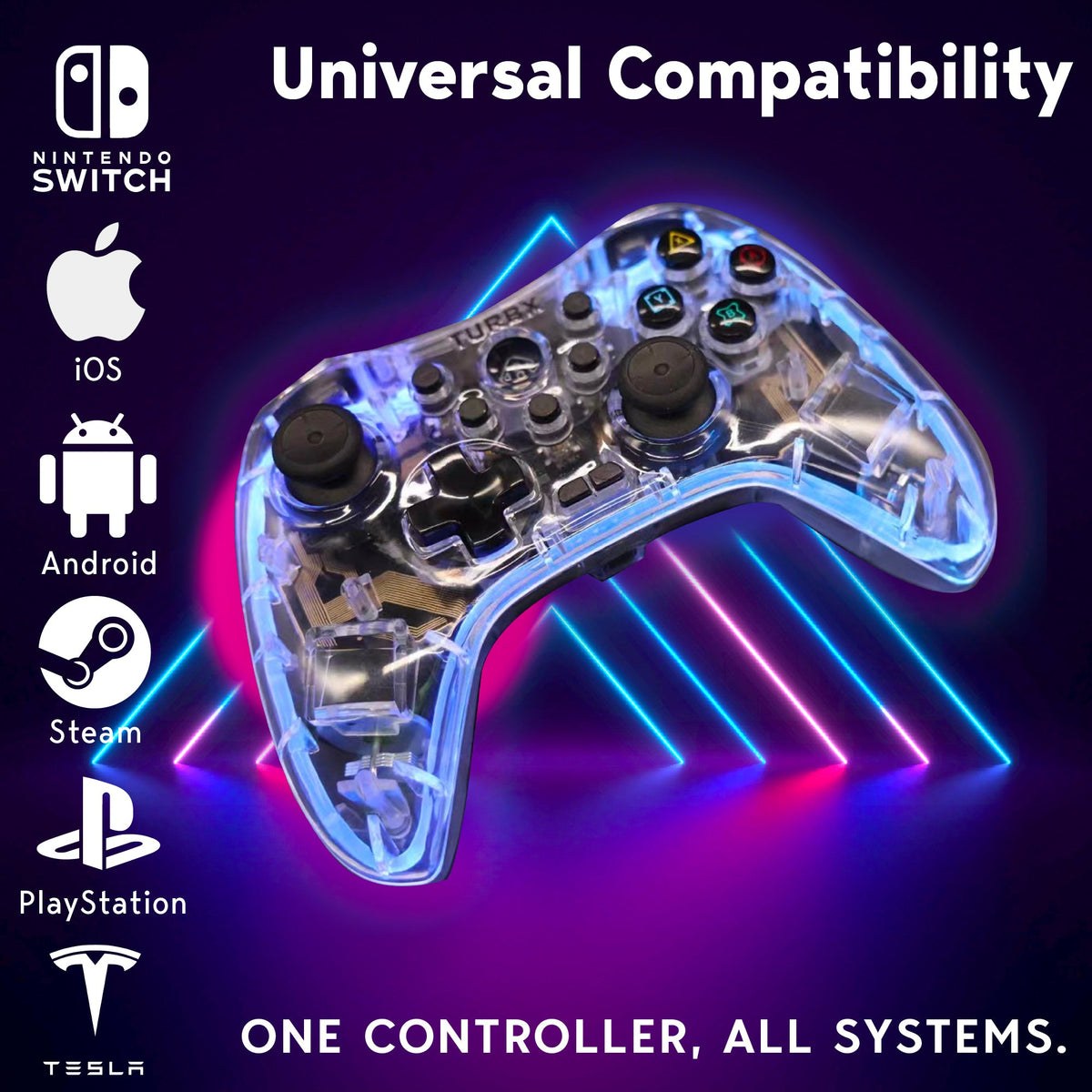
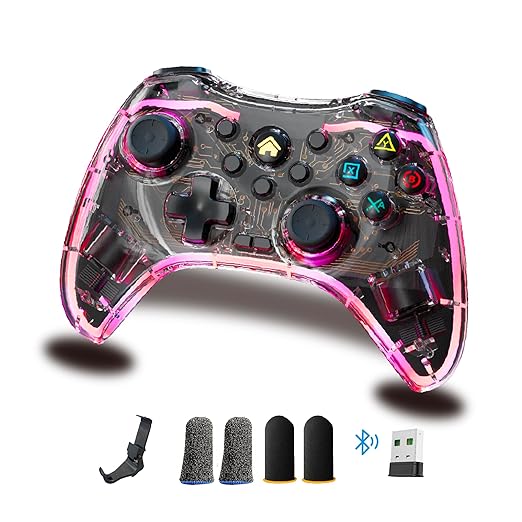
If you are troubleshooting because an older controller keeps failing across platforms, compare TurbX Astra for Switch, PC, Steam Deck, mobile, Mac, and Linux support. If you are still choosing the category, browse the cross-platform controller collection.
Quick buyer questions
Should I update firmware before changing settings?
No. First confirm platform mode, pairing, and game input settings. Update firmware only when your exact TurbX model has a supported update path and the basic mode checks do not solve the issue.
Why does my controller work on PC but not Switch?
The controller may still be in the PC input mode or reconnecting to an old Bluetooth profile. Forget the old device, open the Switch pairing screen, and use the Switch mode for your exact model.
Can Hall Effect or TMR sticks still need calibration?
Yes. Magnetic stick sensing is designed to reduce common drift risk, but deadzone, game sensitivity, and mode mismatch can still make input feel wrong.
When should I replace the controller?
Replace it only after the same input problem appears across devices, games, modes, and supported troubleshooting steps. If the problem is only one game, fix the game profile first.
Helpful links
| Link role | Destination | Anchor text | Purpose |
|---|---|---|---|
| Primary product | TurbX Astra | modular controller for PC, Switch, and Steam Deck | Move fix-intent readers toward the main product when replacement makes sense |
| Collection hub | Cross-platform controllers | controller options for PC, Switch, Steam Deck, and mobile | Support comparison and multi-device shopping intent |
| Support sibling | PC connection guide | connect a TurbX controller to PC | Resolve setup friction before checkout or support contact |
| Support sibling | Switch connection guide | connect a TurbX controller to Nintendo Switch | Route Switch pairing questions to a dedicated support page |


Leave a comment
This site is protected by hCaptcha and the hCaptcha Privacy Policy and Terms of Service apply.