
PlayTurbX support guide
Answer first: If Steam does not detect your controller, or a game ignores it, check controller mode, Steam Input, Bluetooth or USB connection, per-game settings, and button mapping before assuming the controller is broken.
Last updated: June 28, 2026.
Quick fix table
| Symptom | First check | PlayTurbX path |
|---|---|---|
| Steam does not see the controller | Reconnect by USB and confirm PC mode | PC connection guide |
| Steam sees it, but the game does not | Check Steam Input and per-game controller settings | Button mapping guide |
| Wireless connection drops | Charge, shorten distance, and test wired | Support hub |
Choose: connection issue or game input issue?
Separate the failure before buying a new controller. If Windows or your PC does not see the controller, troubleshoot connection mode and cable first. If Steam sees the controller but one game does not, the problem is more likely Steam Input, per-game settings, or mapping.

PlayTurbX path
A replacement path after setup checks
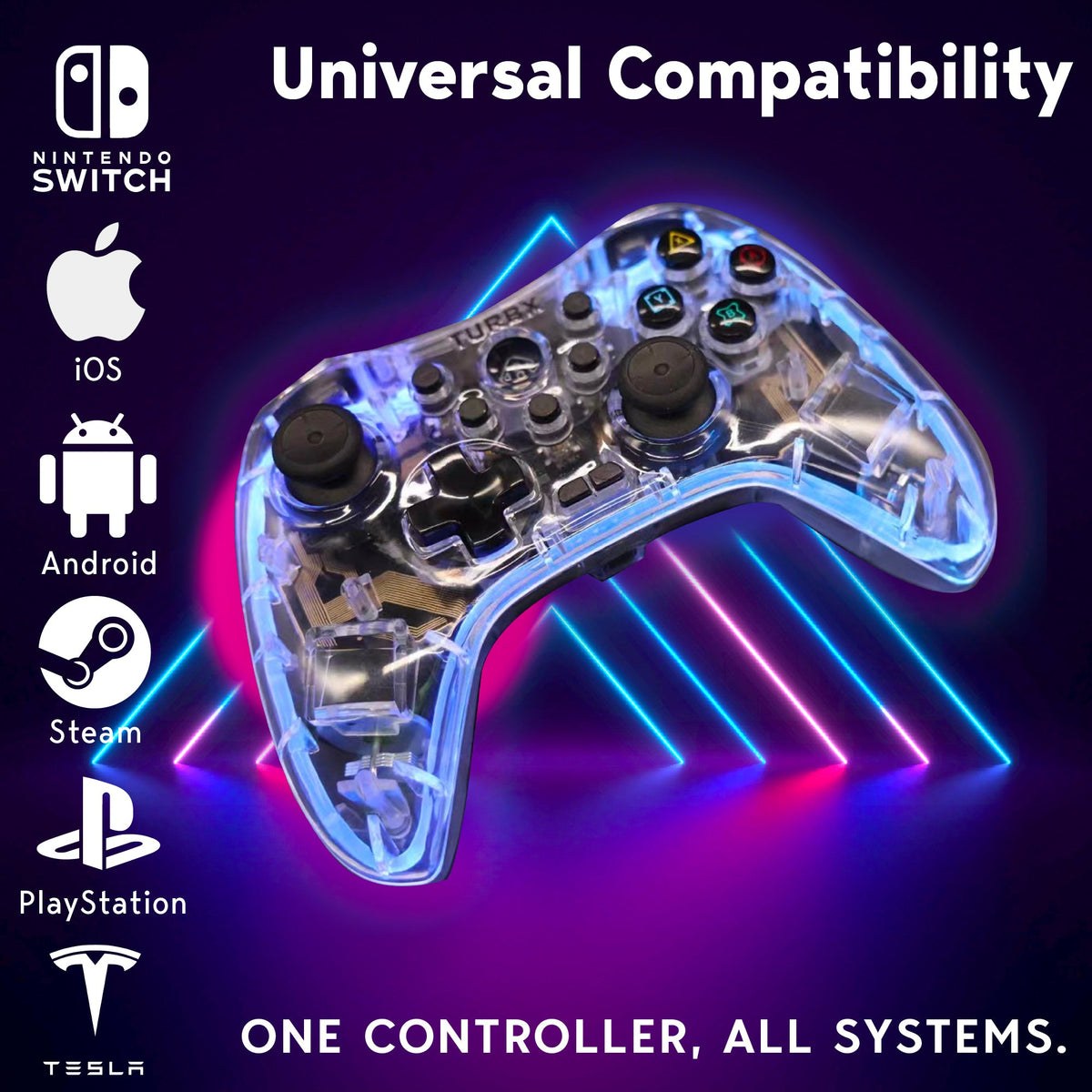
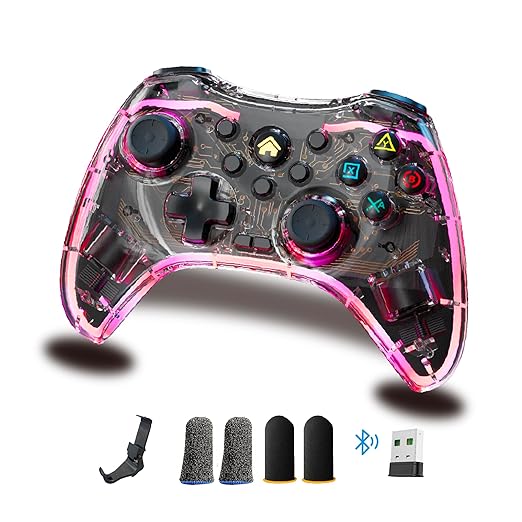
If your current controller keeps failing across Steam, PC, Switch, and handheld use cases, compare Astra as a multi-device controller path with support pages and custom shell options.
Compare: Steam Input, Bluetooth, and game support
- Steam Input: make sure the game is using the controller profile you expect.
- Bluetooth mode: re-pair the controller if the PC sees an old or stale device record.
- USB test: use a known-good cable to isolate wireless from controller hardware.
- Game-specific support: some games need per-game controller configuration even when Steam sees the device.

Use: the PlayTurbX PC support route
- Charge the controller and test a known-good USB cable.
- Confirm the controller is in the correct PC mode.
- Open Steam controller settings and check whether the controller appears.
- Open the game controller settings if only one game fails.
- Use the mapping guide if buttons are detected but feel wrong.
Fix: when to stop troubleshooting
If the controller fails on multiple PCs, multiple USB cables, Bluetooth and wired modes, and multiple games, replacement becomes more reasonable. If it only fails in one game, keep the issue in Steam or game settings first.
FAQ
Why does Steam detect a controller but a game does not?
Steam Input, per-game controller settings, device mode, Bluetooth pairing, or game-level input support can differ. Check Steam settings before replacing hardware.
Should I test wired before replacing the controller?
Yes. A wired test can separate wireless pairing problems from game or Steam Input configuration problems.
Where should PlayTurbX buyers start?
Use the PC connection guide first, then the button mapping guide if Steam sees the controller but the game inputs feel wrong.
When is replacement reasonable?
Replacement is reasonable when the controller repeatedly fails across multiple devices, cables, and games after setup checks.
Recommended next paths
| Link role | Destination | Purpose |
|---|---|---|
| Support page | connect a TurbX controller to PC | Help fix-intent users complete PC setup. |
| Mapping support | controller button mapping guide | Resolve detected-but-wrong-input intent. |
| PC collection | wireless PC gaming controllers | Capture replacement demand. |
| Primary PDP | TurbX Astra modular gaming controller | Route validated replacement intent to the product. |


Dejar un comentario
Este sitio está protegido por hCaptcha y se aplican la Política de privacidad de hCaptcha y los Términos del servicio.