
PlayTurbX comparison guide
Answer first: Button mapping problems are usually caused by a mode, firmware, pairing, or software setting before they are caused by hardware failure. Start with input-mode and mapping checks, then use support pages or replace the controller only if the issue persists.
Last updated: June 28, 2026.
Fast troubleshooting table
| Symptom | First check | PlayTurbX path |
|---|---|---|
| Buttons act swapped on Switch | Reset custom button mapping and retest input. | Switch setup guide |
| Buttons act wrong on PC | Check XINPUT/DINPUT behavior and Steam/game mapping. | PC setup guide |
| You need custom remap features | Check whether your controller supports remap/macro. | TurbX button mapping guide |
Choose: software issue, mode issue, or controller limitation?
Button mapping issues often look like a broken controller, but the root cause is usually a setting. Nintendo support documentation for Pro Controller button issues points users toward mapping reset, firmware update, reset, and input testing before assuming hardware failure.
On PC, the same problem can come from Steam Input, game-level mapping, Bluetooth profile behavior, or the controller being in the wrong mode. TurbX support pages split PC setup, Switch setup, and button mapping so buyers can isolate the issue faster.

PlayTurbX path
Best PlayTurbX path if mapping support matters
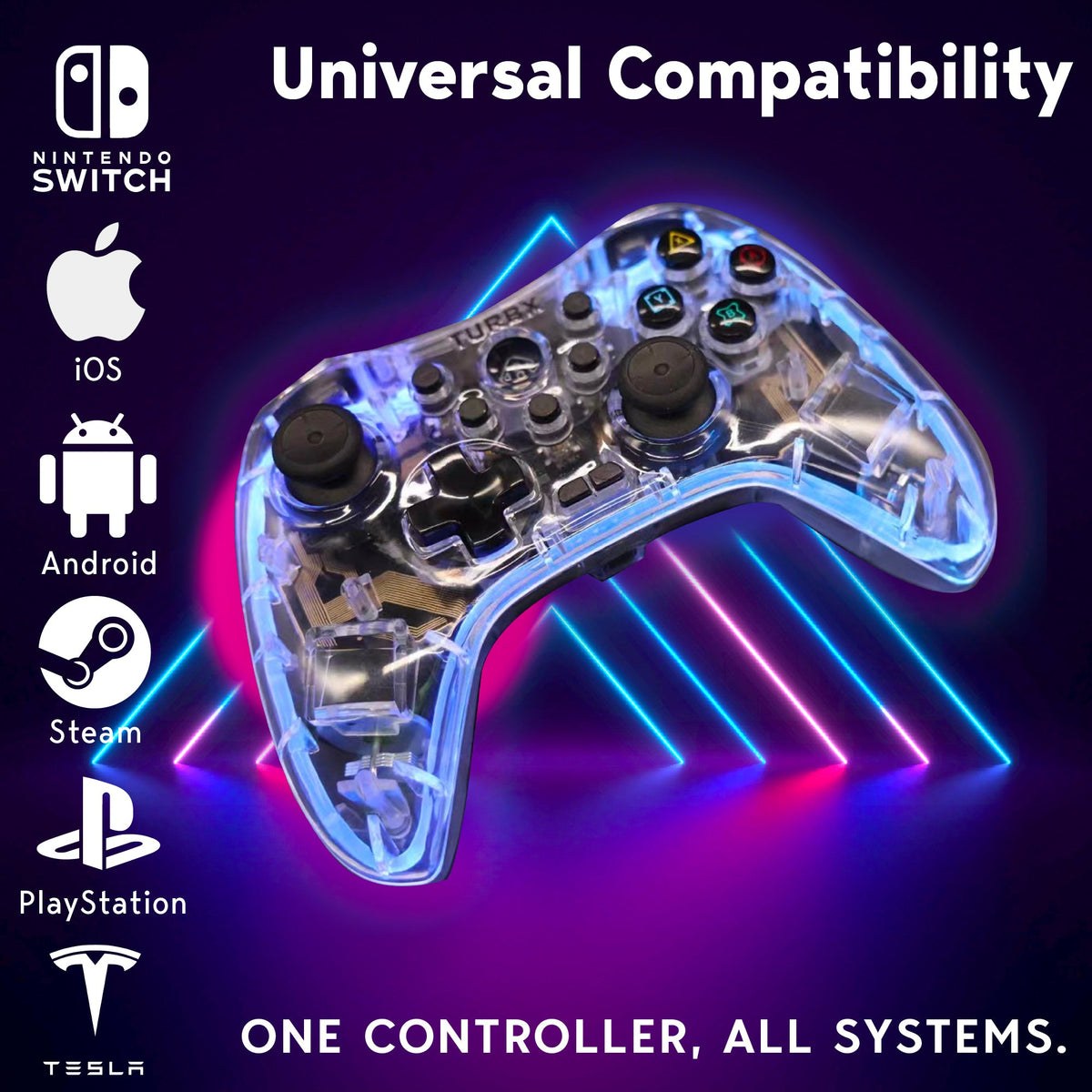
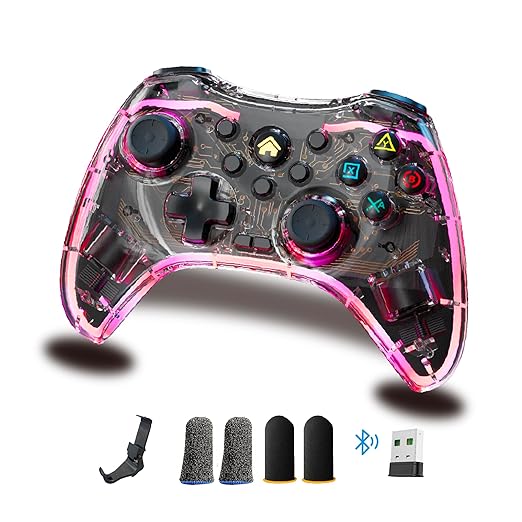
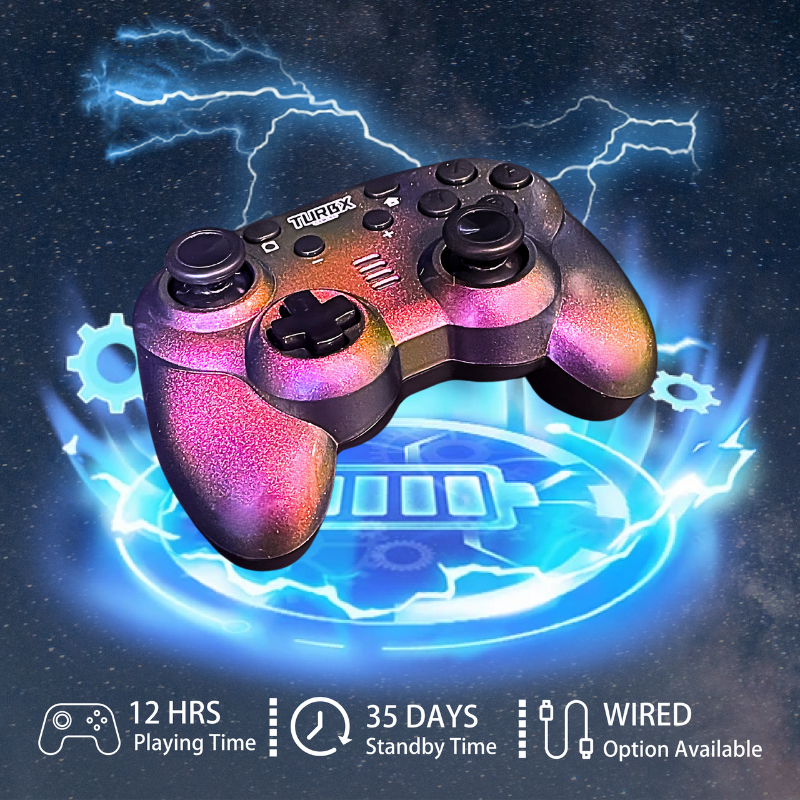
Astra includes remap, macro, turbo, gyro mapping, and cross-platform modes. Use the support pages first; use the product page if your current controller lacks the features or setup clarity you need.

Compare: Switch mapping vs PC mapping
Switch troubleshooting starts with console-level mapping, pairing, firmware, and input testing. PC troubleshooting starts with connection type, XINPUT or DINPUT mode, Steam Input, game settings, and duplicate Bluetooth devices.
If the controller supports multiple modes, write down which mode works for each device. A controller can pair successfully and still send the wrong input profile for the game.
Use: step-by-step fix path
- Restart the console or PC and charge the controller.
- Remove duplicate Bluetooth pairings and reconnect.
- Reset custom button mapping at the system level if available.
- Update console, game, and controller firmware where supported.
- Test wired mode on PC to separate wireless issues from mapping issues.
- Check the controller's support page for remap, macro, and input-mode behavior.
Fix: when the controller is not the right fit
If the controller cannot switch modes clearly, does not document remap behavior, or cannot support the devices you use, replacement can be more practical than repeated troubleshooting. In that case, compare a cross-platform controller with clear PC and Switch support.
FAQ
Why is my controller button mapping not working?
Common causes include console-level mapping, game-level mapping, wrong input mode, Bluetooth profile mismatch, stale firmware, or a controller that is paired but not in the expected mode.
What should I try first on Switch?
Check button mapping in System Settings, reset custom mapping if needed, update the console and controller, then test input again before assuming the controller is broken.
What should I try first on PC?
Try USB-C wired mode, confirm Steam Input or game controller settings, check XINPUT versus DINPUT behavior, and remove duplicate Bluetooth pairings before reconnecting.
When should I replace the controller?
Consider replacement only after setup, firmware, mapping, and input-mode checks fail, or when the controller lacks the remap/support features you need.
Recommended next paths
| Link role | Destination | Purpose |
|---|---|---|
| Support path | TurbX button mapping guide | Help users fix remap and macro confusion. |
| PC setup | connect a TurbX controller to PC | Support Windows and game-launcher setup. |
| Switch setup | connect a TurbX controller to Switch | Support Switch pairing and input testing. |
| Replacement path | TurbX Astra cross-platform controller | Route failed troubleshooting to a relevant product. |
| Collection path | wireless PC gaming controllers | Capture PC replacement intent. |


اترك تعليقًا
This site is protected by hCaptcha and the hCaptcha Privacy Policy and Terms of Service apply.